2019年1月19日星期六

How to Recover Permanently Deleted Voicemail from iPhone 2019


1: Recover Permanently Deleted Voicemail via iTunes Restore

Apple allows you to back up the entire data of your iPhone using iTunes. So you can recover the permanently deleted voicemail by restoring the iTunes backup to your iPhone. The entire data including the saved voicemail will get recovered. Follow the steps below.

Step 1. Open iTunes on your computer and connect your iPhone using the USB cable.

Step 2. Complete the steps that are shown on your computer screen and then select your device.

Step 3. Click on “Restore Backup” and select the most appropriate backup of your device after checking its date and time.

Step 4. When you click “Restore”, the restore process will begin immediately. Once it is finished, the entire data including the deleted voicemail will get restored to your iPhone.


Please make a backup of your current data, because the full backup restore will replace all your current data.
2: Recover Permanently Deleted Voicemail via iCloud Restore

If you have enabled iCloud in your iPhone, the data will automatically get backed up to cloud whenever your device is connected to a Wi-Fi network. You can then restore the backup to your iPhone when you need. Follow the steps below to restore the backup to your iPhone.

Step 1. Go to Settings of your iPhone -> Apps and Data screen and tap “Restore from iCloud backup”.

Step 2. Sign in with your Apple ID and password.

Step 3. Select the latest iCloud backup of your device after checking the date and time. The restoring of data will begin immediately.

Step 4. If asked, enter the Apple ID and password again to restore the apps and purchases.

Step 5. Once the recovery process is complete, the entire iCloud data will be restored to your iPhone. You can now check the recovered voicemail in your iPhone.


Please note that you need to erase all content and settings before restoring the backup.
3: Recover Recently Deleted Voicemail from iPhone

If you have recently deleted the voicemail, you can easily recover using simple steps below.

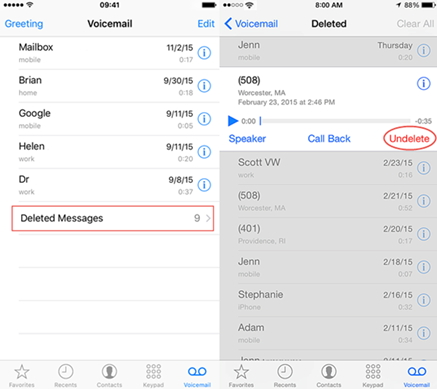
Step 1. Open Phone app-> Voicemail -> Deleted Messages.

Step 2. All the deleted voicemail will be displayed. Choose the ones that you want to recover and tap “Undelete”.


This method will work only if the voicemail were deleted a few days ago.

Sponsor ads:

Gihosoft Free iPhone Data Recovery:https://www.gihosoft.com/iphone-data-recovery-free.html

Gihosoft iPhone Data Recovery Free

Free iPhone Data Recovery Software for Windows/Mac

Recover up to 12+ types of files, including contacts, SMS, photos, WhatsApp, Viber, notes, etc.

Restore lost data from iOS devices directly or from iTunes and iCloud backup

Recover iPhone data lost due to iOS upgrade/jailbreak, accidental deletion, device lost or broken

Support all the latest iPhone, iPad and iPod Touch

Both Free and Pro version.

If you lost data after you updated to a new iPhone, you can always use Gihosoft iPhone Data Recovery to get the data back from the old iPhone or backup.You may also like: iphonerecovery.com

If you use android phones, please choose Gihosoft Android Data Recovery.

With Gihosoft Android Data Recovery, no longer afraid of data loss!

Must read:Youtube video downloader for pc

Gihosoft RePicvid Free Photo Recovery Software provides a free photo recovery software for windows to help users recover the deleted or lost photo for free.

Jihosoft Android Data Recovery: the best Android Data Recovery software for Windows and Mac to recover deleted contacts, messages, photos, videos, WhatsApp and etc from Android devices.Tips:How to transfer messages from iPhone to iPhone


jihosoft Free iPhone Data Recovery

2019 Default Password for iTunes Backup? Does It Exist?


The Above Passwords Didn't Work? Try These Tips
1 Use iCloud Backup

You can use iCloud backup and restore your device with a previously created backup. Keep in mind that iCloud backup and iTunes backup are different from each other.
Check Whether an iCloud Backup is Available

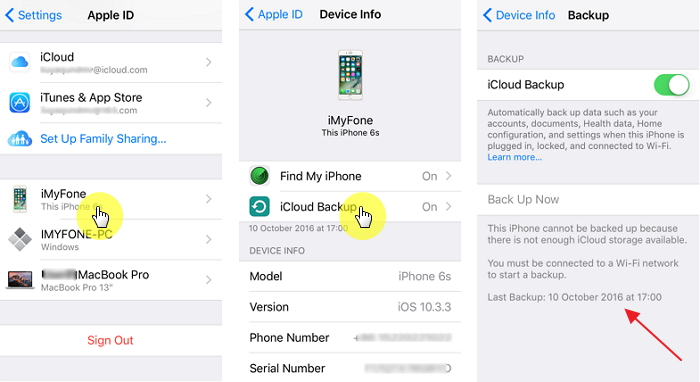
You won't find your iCloud backup on iCloud.com even though it is an iCloud backup. For this, you will need to look for the backups in your iDevice. Follow these instructions to check whether an iCloud backup is available:


Open the Settings app.


Tap on [your name] and then navigate to [your iPhone name] > iCloud Backup.


Steps to Restore from a iCloud Backup

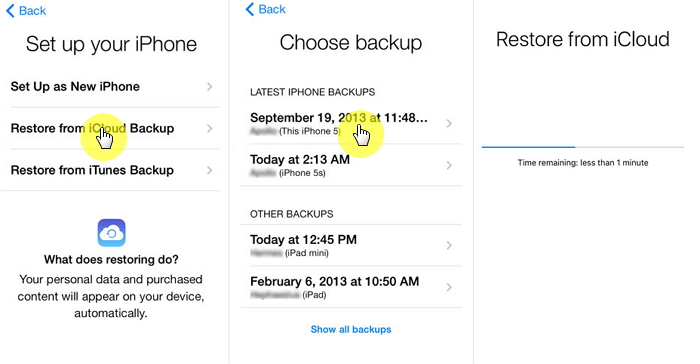
You cannot restore from iCloud backup normally. You can only do this via the iOS Setup Assistant. So, you will need to reset your iDevice first if you want to restore from iCloud backup. Follow these instructions:


Open the Settings app on your iDevice.


Navigate to General > Reset and then tap 'Erase All Contents and Settings' option to reset your device.


Once the reset process completes and your iDevices powers on, follow the on-screen instructions and get to App & Data screen.


Once there, tap 'Restore from iCloud Backup' option.


Next sign in to your iCloud account and choose the backup. The restoring process will begin.
Difference Between iCloud Backup and iTunes Backup

You will need to understand the various aspects of both types of backups if you want to know the difference between them.


iCloud Backup

iTunes Backup


Include

Camera roll, documents, accounts and settings.

Notes, videos, settings and all your account passwords, apps and data.


Exclude


iCloud music library and Touch ID settings.


Apple Pay information and settings.


Data stored in other cloud backup services such as Exchange mail and Gmail.


Data that is already stored in iCloud, including iCloud photo library, calendars, photos, notes, contacts, etc.


Keychain, Activity, and health data.


Apple Pay information and settings.


Touch ID settings.


Photos already stored in the cloud.


Content synced from iTunes.


Content from iTunes and App Store, including PDFS that are downloaded to iBooks.

2 If You Use Mac, Try the Keychain

If you are a Mac user, then you are in luck because you can easily recover your iTunes backup password via Keychain Access. Follow these instructions:


On your Mac, open the Utilities section and then navigate to Keychain Access and launch it.


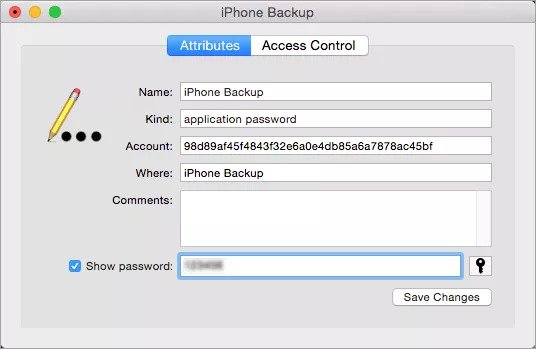
Now in Keychain Access, click on All Items and then input the “iPhone backup” in the search field to find the iPhone Backup keychain.


Once you find it, open it by double-clicking on it and then mark the checkbox called Show password.


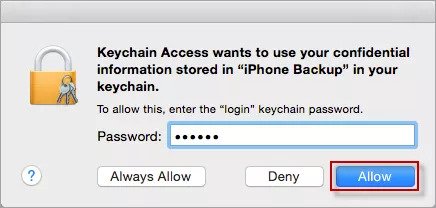
Now input the keychain password and then click on Allow. Your iTunes backup password will appear on a pop-up after this step.


Sponsor ads:

Gihosoft Free iPhone Data Recovery:https://www.gihosoft.com/iphone-data-recovery-free.html

Gihosoft iPhone Data Recovery Free

Free iPhone Data Recovery Software for Windows/Mac

Recover up to 12+ types of files, including contacts, SMS, photos, WhatsApp, Viber, notes, etc.

Restore lost data from iOS devices directly or from iTunes and iCloud backup

Recover iPhone data lost due to iOS upgrade/jailbreak, accidental deletion, device lost or broken

Support all the latest iPhone, iPad and iPod Touch

Both Free and Pro version.

If you lost data after you updated to a new iPhone, you can always use Gihosoft iPhone Data Recovery to get the data back from the old iPhone or backup.You may also like: iphonerecovery.com

If you use android phones, please choose Gihosoft Android Data Recovery.

With Gihosoft Android Data Recovery, no longer afraid of data loss!

Must read:Youtube video downloader for pc

Gihosoft RePicvid Free Photo Recovery Software provides a free photo recovery software for windows to help users recover the deleted or lost photo for free.

Jihosoft Android Data Recovery: the best Android Data Recovery software for Windows and Mac to recover deleted contacts, messages, photos, videos, WhatsApp and etc from Android devices.Tips:How to transfer messages from iPhone to iPhone


jihosoft Free iPhone Data Recovery

2019年1月17日星期四

How To Hide WhatsApp Status From Selected Contacts 2019


Well everyone knows how useful WhatsApp is! And if you still have any doubt, then this Facebook-owned company has over 1.3 billion monthly active users! Which probably means that WhatsApp is the first application that anyone installs after purchasing a smartphone. And why they shouldn’t, WhatsApp is highly convenient and useful. It is free, quick, and most of all fun to use! But what is the fun part of sending everyday messages to your contacts? Well, if you think WhatsApp is just capable of sending messages to your near and dear ones then you are wrong! As WhatsApp has previously introduced the story status feature and it has surely revamped the whole look of this most popular messaging platform. As in this story update, people can easily share their everyday’s life happening to their WhatsApp contacts with no hassles and extra and unnecessary steps. Be it images, videos, GIF, memes, or almost anything!

But by default, this status update is set to be seen by all your WhatsApp contacts. So, what if you want to hide something from few of your contacts but eagerly want to put on your status too? Well, don’t bother, because WhatsApp has a solution to configure your status updates, which allow you to share your status only with selected contacts. So, if you don’t like to share your status update from each one of your contacts and want to know how to hide them. Then simply follow the steps that are mentioned below.


How to hide WhatsApp status from selected contacts:


Open your WhatsApp and go to the “Status” tab where the status updates of your contacts are displayed.


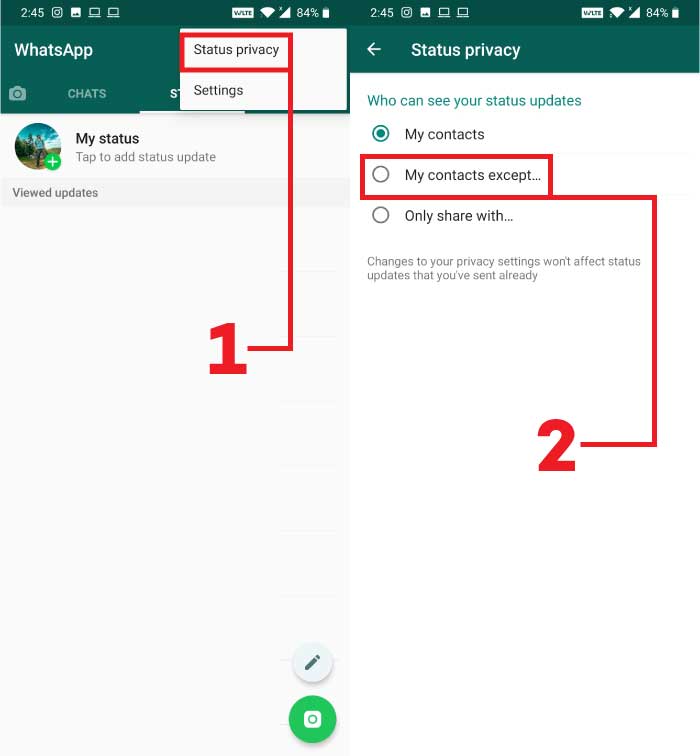
Then once your status tab is opened, tap on the three vertical dots from the upper right corner and go to “Status Privacy”.


On the next screen, you can see “Who can see your status update”. Now if you want to hide your status from selected contacts then tap on “My contacts expect…” option.


After you select this option, a list of all your contacts will be displayed on the screen. Now, finally select the contacts you want to hide status updates from and once done tap on the green checkmark button from the bottom-right to confirm the changes.

That’s it, now your WhatsApp status will get hide from your selected contacts without any hassle. The steps above are genuine and works perfectly fine on your Android device. Although if you later want to remove some contacts from your list then you can easily do it too. Just go on your status privacy and undo the contacts which you have already added. Once done tap on the same green checkmark button to confirm your changes.

But if you are someone who wants to share their WhatsApp status only with a few numbers of contacts and hiding a long list of contacts feel a bit of a burden. Then don’t worry WhatsApp has a solution to this problem. As following the above-mentioned steps you now need to tap on the “Only share with…” option. And similarly, you will find your WhatsApp contacts list on the next screen. Now, select the contacts with whom you wish to share status updates with. And don’t forget to hit the green checkmark button on the bottom-right to confirm the changes. That’s it, you have now selected the contacts with whom you want to share your status update.
Related Posts:

How to Schedule WhatsApp Messages on Android and iPhone

How to Recover Deleted WhatsApp Messages on Android from/without Backup


So, now you know how to hide your WhatsApp status from selected contacts. And also how to share your status only with a few contacts. So, if this article helped you don’t forget to share it with your friends on social media. And also mention your views in the comment box below.

2019年1月16日星期三

Use iCloud to Remotely Unlock iPad/iPhone without Passcode or iTunes


Use iCloud to Remotely Unlock iPad/iPhone without Passcode or iTunes

When your iPad/iPhone has “Find My iPhone” enabled and you know the iCloud account and password, you can unlock your iPad/iPhone remotely.

Step 1: On a web browser on your computer or on other device, go to icloud.com.

Step 2: Log in with your iCloud account and password.

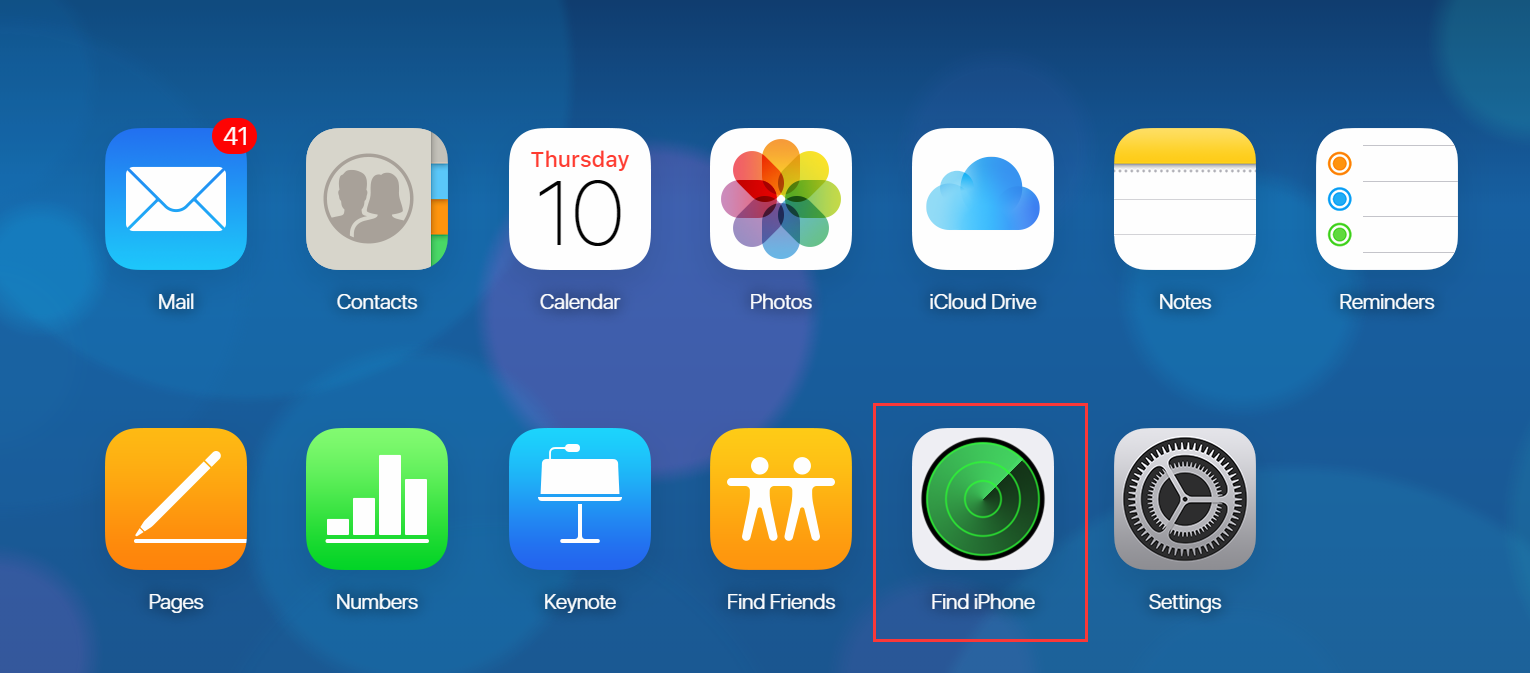
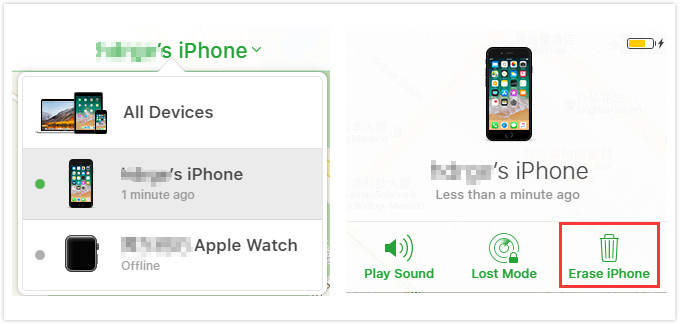
Step 3: Select “Find iPhone” app there.


Step 4: Click “All Devices” at the top and select your locked iPad or iPhone.

Step 5: Click “Erase iPhone” from the window and confirm it. Your iPhone will be unlocked when it connects to internet.


Note: This way only works to unlock iPhone screen but not unlock iPhone from iCloud account.
Use Siri to Get into iPad/iPhone without Passcode or iTunes

The loophole of Siri allows you to access your iPad/iPhone without passcode. But it only works for some old iOS version. There is no one can ensure this way will take effect for which iOS version. The certain thing is that it won’t work for iOS 11 and iOS 12.

If you don’t mind, you can have a try.

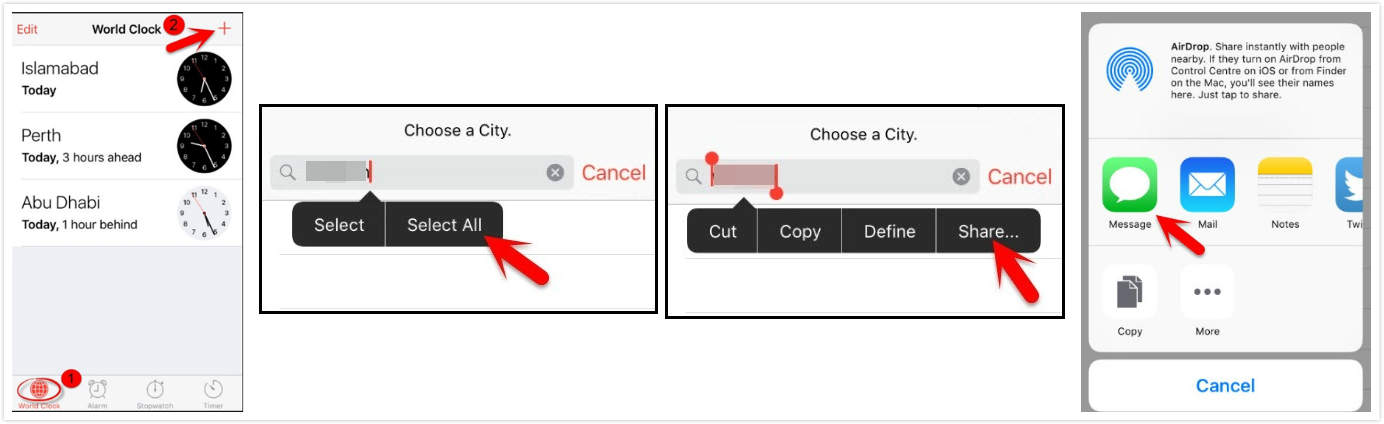
Step 1: Press down the Home button on your iPad to prompt Siri. Request what the time is from Siri using a command like "Hey Siri, what is the time, and then click on the clock icon.

Step 1: It will open up the Clock on your iPad, then add a watch tapping “+.”

Step 2: Type in anything on the search box and click "Select All."

Step 3: From the provided options, click on the "Share" button.

Step 4: A display comes up with various sharing options; choose the message icon to continue.

Step 5: On the next display, type in your message. Write something in the "To" field of the design then click the Back button.


Step 6: This highlights your text. Select and tap Add option.

Step 7: Tap the Create New Contact button to create a new contact.

Step 8: On the next display tap the photo icon, click "Select photo."

Step 9: Choose an album, when your photo gallery displays.

Step 10: Press the Home button from there, and everything goes back to normal.


Note: This way doesn’t remove the screen lock from your iPhone/iPad, it just helps you to get into the device. That means, you need to follow the steps every time you want to access your device.
How to Back Up iPad/iPhone Before Unlocking

All the ways discussed above will delete your device data as well. You can consider backing up your iPad/iPhone before unlocking. But note that the only way to back up your device is using iTunes. The iTunes you use should be the one you synced your device with previously. If ok, follow these steps:

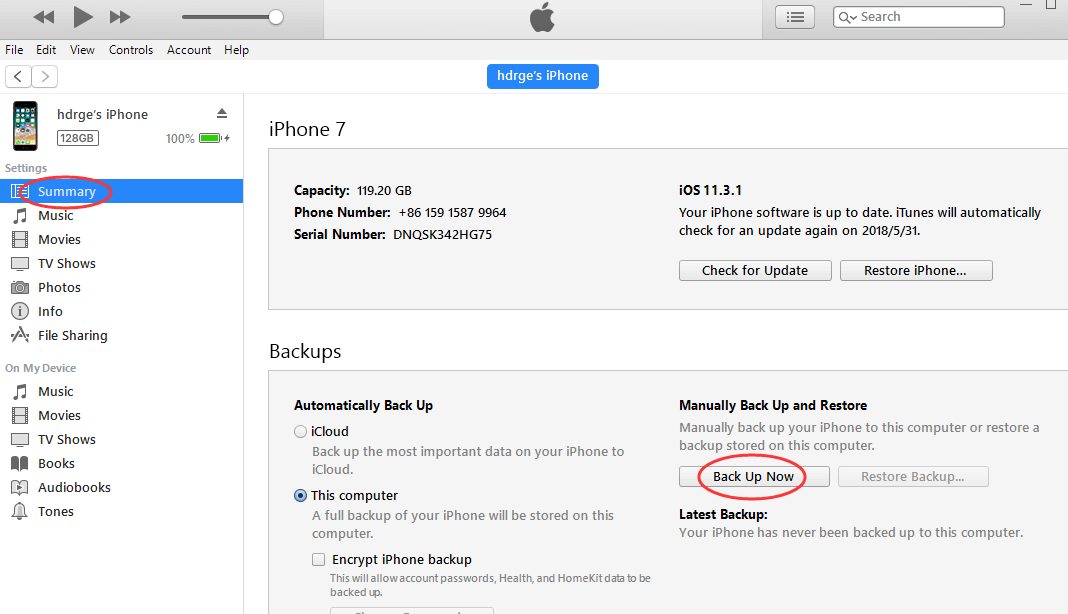
Step 1: Launch the iTunes that you synced iPad/iPhone with. Connect your device to your computer.

Step 2: iTunes will automatically sync and back up your device.

Step 3: If not, you can click the device tab at the top left corner on iTunes. Then click “Back Up Now” and it will start backing up your device.


That’s it, just wait for it to finish and you can unlock your device without any worries.

Sponsor ads:

Jihosoft iPhone Data Recovery:https://www.jihosoft.com/recovery/ios-data-recovery.html

Jihosoft iPhone Data Recovery

Free iPhone Data Recovery Software for Windows/Mac

Recover up to 12+ types of files, including contacts, SMS, photos, WhatsApp, Viber, notes, etc.

Restore lost data from iOS devices directly or from iTunes and iCloud backup

Recover iPhone data lost due to iOS upgrade/jailbreak, accidental deletion, device lost or broken

Support all the latest iPhone, iPad and iPod Touch.

Tips:

How to transfer messages from iPhone to iPhone

Gihosoft Free iPhone Data Recovery:https://www.gihosoft.com/iphone-data-recovery-free.html


Gihosoft iPhone Data Recovery Free

Common Ways to Search WhatsApp via Backup Restore


Common Ways to Search WhatsApp via Backup Restore

Now, let’s take a look at the second option: the traditional method you can use to search and recover WhatsApp messages. In this method, we will use the iTunes and iCloud backups.
Search WhatsApp Messages via iTunes Restore

First, let’s see the possibility of searching WhatsApp messages through iTunes restore.

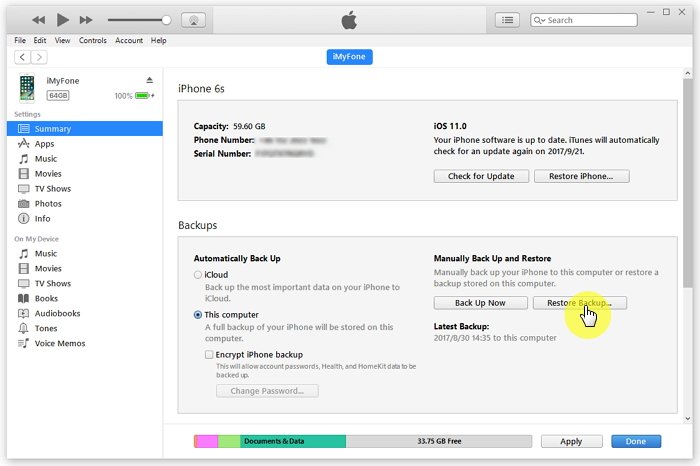
Step 1. Launch iTunes on your computer and connect the device into the same computer.

Step 2. Select the option “Restore Backup in iTunes”.

Step 3. Identify the most relevant type of backup by determining the date and the size of the backup. Click on “Restore”.

Step 4. Be sure that the device is connected until the process is completed.

Step 5. Once the synchronization is finished, use the phone.


Note


Can’t view all the content of a backup which may cause you to choose the incorrect one to restore.


You cannot search and recover data selectively which means you have to restore everything and scour through the data until you find exactly what you want.


Once you complete a full restore, all your current data and settings on your device will be replaced.


This method is only viable if you’ve already made a backup, so if you haven’t done it already you cannot depend on this method.

Sponsor ads:

Gihosoft Free iPhone Data Recovery:https://www.gihosoft.com/iphone-data-recovery-free.html

Gihosoft iPhone Data Recovery Free

Free iPhone Data Recovery Software for Windows/Mac

Recover up to 12+ types of files, including contacts, SMS, photos, WhatsApp, Viber, notes, etc.

Restore lost data from iOS devices directly or from iTunes and iCloud backup

Recover iPhone data lost due to iOS upgrade/jailbreak, accidental deletion, device lost or broken

Support all the latest iPhone, iPad and iPod Touch

Both Free and Pro version.

If you lost data after you updated to a new iPhone, you can always use Gihosoft iPhone Data Recovery to get the data back from the old iPhone or backup.You may also like: iphonerecovery.com

If you use android phones, please choose Gihosoft Android Data Recovery.

With Gihosoft Android Data Recovery, no longer afraid of data loss!

Must read:Youtube video downloader for pc

Gihosoft RePicvid Free Photo Recovery Software provides a free photo recovery software for windows to help users recover the deleted or lost photo for free.

Jihosoft Android Data Recovery: the best Android Data Recovery software for Windows and Mac to recover deleted contacts, messages, photos, videos, WhatsApp and etc from Android devices.Tips:How to transfer messages from iPhone to iPhone


jihosoft Free iPhone Data Recovery

2019年1月15日星期二

10 Best Horror Games for Android 2019


It is no wrong in saying that everyone loves horror genre but yes, to a certain degree. Because where else can you find some spooky hair-raising thrills and a good jump scare? Although yes, we all face some horrific experiences on our Android devices daily, like 10 missed calls from your dad, or having a spicy argument with someone and suddenly your phone’s battery drains out, or even when you encounter your phone bill! That all is pure horror. But in this post, we are talking about a different horror that you can face on your Android device in the finest form. And that is through horror games! Just like in the movies or even when reading a horror book you might have noticed your heart to skip a beat and yet you keep on watching or reading them because you can’t take your eyes off! And there are certain horror games on the Google Play Store that can give you the same thrilling experience which will surely fill up your appetite with scary bits and horrific sound! But don’t worry you don’t have to go anywhere to find them! As here is the list of 10 Best Horror Games For Android which will surely make it impossible for you to leave your smartphone, even though you will be completely thrilled to indeed turn your lights off!Sponsor ads:Change Message/iMessage Background on iPhone with/without Jailbreak

Worth Reading: Download and Install Huawei USB Drivers

Best Horror Games for Android:


Granny


Eyes – The Horror Game


Horror Hospital 2


Dead Effect 2


The Fear: Creepy Scream House


The Walking Dead: Season One


Slendrina: The Cellar (Free)


Goosebumps Night of Scares


Five Nights at Freddy’s 2 Demo


Forest 2
1. Granny

Granny is a first-person horror game where the player tries to escape from a creepy house that is full of traps. But escaping from that house won’t be easy, as the evil Granny hears everything. So, even if she hears a pin-fall, she will come to you at full speed to catch you again and again. You can still hide in wardrobes or under beds but the question is till when? So, can you trick granny in 5 days? Well, you can only find out this after downloading Granny. But, with the constant, worry of waking her up with your every move and the intuitive controls, this game is sure spooky.


Main Features:


Amazing sound-effects.


Stunning visuals.


Detailed graphics.


Horrifying effects.

Download Granny
2. Eyes – The Horror Game

If you’re someone who is interested in a tense gameplay, sudden jump scares, and a chilling atmosphere, then Eyes – The Horror Game is perfect for you. As it is a first-person horror game where the player needs to escape from a mansion which is built like a maze. But it won’t be that easy. As the ghosts from the mansion are after you. Which means constant evil jumpscares and scary creatures are waiting for you in every room. But don’t worry about all this hassle, there is a hand-drawn map which will help you in planning your next move. In addition, the game has multiple levels and different game modes that will hook you up in this chilling atmosphere. So, can you escape this mansion? Download Eyes – The Horror Game today and know your survival skills.


Main Features:


Multiple scary monsters to choose from.


Multiple levels to unlock.


Different game modes.


Hand-drawn map.


Chilling atmosphere.

Download Eyes
3. Horror Hospital 2

Horror Hospital 2, as the name suggests, is a horror game which is completely based on the location of a haunted hospital. But it is the only hospital where even the doctors can’t save you. As with your every step, there are some of the other paranormal activity waiting to get on your nerve! Apart from the storyline, the game indeed has amazing graphics, detailed areas, spooky music and many much to offer. Also, the game includes a number of terrifying levels that will surely scare you at every point. So, download Horror Hospital 2 and survive in a haunted hospital where the devil awaits for you!


Main Features:


Amazing graphics.


Detailed areas.


Unique music.


Completely free.


Spooky atmosphere.


You might also like: 6 Top Best Games Hacking Apps For Android with/without Root

Download Horror Hospital 2
4. Dead Effect 2

Dead Effect 2 is a console-quality action sci-fi shooter game that includes RPG elements. As in the game, you can play up to 3 different characters with a unique system of 100+ upgradable body implants and gear sets. The game renders a number of customizable options including the on-screen controls. Extending with the console-quality, the game provides with breathtaking graphics using the latest Android & NVIDIA technology. So, one thing is for sure, there are a ton of jumpscares waiting for you! In all, Dead Effect 2 is a great horror game which includes an enticing storyline, dark background, movie-quality sound effects and many such more.


Main Features:


Console quality graphics and sound.


RPG layer with deep character development.


Immersive gameplay.


Customizable controls.


40+ upgradable weapons.

Download Dead Effect 2
5. The Fear: Creepy Scream House

The Fear: Creepy Scream House, is a first-person horror game where you play a man whose wife and daughter disappeared in an unusual set of events. The events started when your ex-wife Marta suddenly started to act completely odd and then she was headed to a mental asylum. After that point, you feel that someone is following you and your family. So, in all this hassle, can you save your family fro the ghosts of your ex-wife? But apart, from this interesting story-line, the game indeed renders great sound effects, chilling atmosphere and fearful graphics which will surely keep you hooked for hours and hours. So, download The Fear: Creepy Scream House and find your missing family before something dangerous happens to them!


Main Features:


Deeply effective story.


High graphics.


A fearful and tense atmosphere.


8 different languages.


Horror stories.

Download The Fear
6. The Walking Dead: Season One

The Walking Dead is a five-part game series (Episode 2-5 can be purchased via in-app), which is based on the same universe as Robert Kirkman’s award-winning series. In the game, you play as Lee Everett, a convicted criminal, who has been given a second chance at life in a world devastated by the undead. Your mission in the game is to protect an orphaned girl named Clementine in this unusual set of events. But it won’t be easy, as corpses are returning to life and they are turning living people into a Walking dead! So, download The Walking Dead: Season One and make actions, choices, and decisions that will affect how your story plays out across the entire series!


Main Features:


Plays great on NVIDIA SHIELD.


Amazing sound-effects.


Effective story-line.


Chilling visuals.


Detailed areas.

Download The Walking Dead
7. Slendrina:The Cellar (Free)

If you are someone who is a total fan of Slender Man, then you will surely love the Slendrina horror game. As the game consists the story of an evil woman who hates when someone intrudes on her territory. And she can do anything to stop you! So, before she catches you run to the exit and don’t forget to find 8 missing old books, which will further help you in the game. But how will you survive from this evilness that is following you? By finding keys to the door that are hidden anywhere, so make sure in all this spooky atmosphere you find the right key of the perfect door! So, download Slendrina: The Cellar (Free) and make sure whatever happens you don’t look back!


Main Features:


Detailed areas.


Spooky environment.


Great visuals.


Thrilling sound effects.


A number of levels.

Download Slendrina
8. Goosebumps Night of Scares

Goosebumps Night of Scares is surely one of the bestselling horror series. That has now come to your Android device in the form of an exciting horror game. The game has a number of frightening Goosebumps monsters, including Slappy the Dummy, evil gnomes, werewolves, and more. In the game, you are trapped in the R.L. Stine’s house that is filled with most of his famous monsters! So, can you survive a night in a house filled with villains? Apart, from the intriguing storyline, the game indeed has great jump scares, frightening moments as well as a ton of mystery that awaits! Also, the best part, the game includes a Virtual reality mode in which you can place your phone in a VR-compatible headset to get even closer to the action! So, download Goosebumps Night of Scares and collect pages from R.L. Stine’s most famous books to trap the monsters down.


Main Features:


A number of mysteries to solve.


Virtual Reality mode.


Goosebumps greatest monsters.


Stunning visuals.


Chilling atmosphere.

Gihosoft Free Android Data Recovery software - Recover Lost Data from Android


Download Goosebumps Night of Scares
9. Five Nights at Freddy’s 2 Demo

Five Nights at Freddy’s 2 Demo, is a first-person horror game where you go back to working at the famous Freddy Fazbear’s Pizza shop. In the game, you play the role of a new security guard that is working in night and his job is to monitor cameras and make sure nothing goes wrong after-hours. But will it be that easy? Of course not, as the evil characters won’t leave you alone! So, to make your job easier, you’ve been provided with your very own empty Freddy Fazbear head. That should fool the animatronic characters into leaving you alone if they should accidentally enter your office. So, download Five Nights at Freddy’s 2 Demo and save your self as well as the Freddy Fazbear’s Pizza shop!


Main Features:


A new cast of characters.


A number of rooms.


Chilling environment.


Horror music.

Download Five Nights at Freddy’s 2 Demo
10. Forest 2

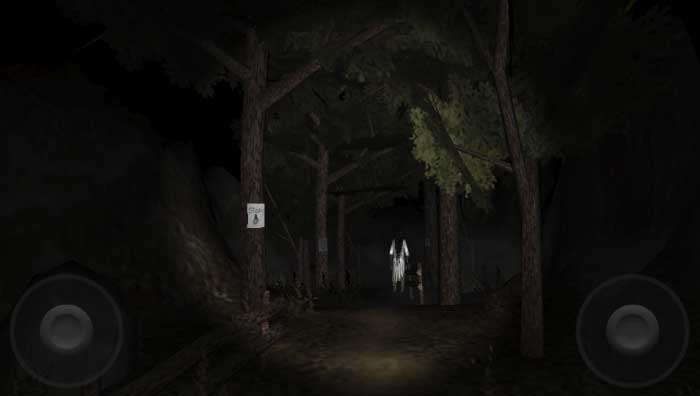
Do you dare to return to the most terrifying forest in the world? As Forest, which is indeed one of the best horror game is back with its second part and this time the number of jump scares are much more extended! As the game includes a new AI, upgraded graphics, better controls and more content as compared with the first part. In the game, you will be trapped in a dark forest with an evil white ghost! And your mission is to escape and finally find a way to banish the ghost. So, download Forest 2, and make sure you stay careful and quite as the ghost can hear you!

Main Features:


New AI.


Upgraded graphics


Better controls.


More content.


Stunning sound quality.

Download Forest 2

So, here was the list of the 10 Best Horror Games that you can play on your Android device without any hassle. Also, each of the above game has a different concept, so that you don’t get bored of playing the same game again and again. Also apart from the different concepts, the visuals and the sound quality of all the game are surely great. You will get your jump scare moments with a number of great and challenging mysteries to solve.
Related Posts:

How to Play PS4 Games on Any Android Phone with Ease

So, are you up to take this spooky challenge? If yes, then do mention us in the comment box below which games you preferred. And also share this article on social media with your friends too.

2019年1月13日星期日

Apple seeds iOS 12.1.3 Beta 4


WHAT’S NEW IN IOS 12.1.3 BETA 4?

Just like its predecessor, this update brings improvements to the cellular connectivity component of iPhone XS and iPhone XS Max. It updates the baseband from 1.03.07 to 1.03.08 on iPhone XS and XS Max models.

This update weighs a meager 100MB for all compatible devices, which indicates it has little to offer in terms of new features or enhancements. Its build number is 16D5039a.


This fourth beta is available for download to developers and testers registered in the public beta program.

Apple also released the macOS Mojave 10.14.3 Beta 4 alongside iOS 12.1.3 Beta 4. On the other hand, tvOS 12.1.2 and watchOS 5.1.3 firmware are still in the third beta.
IOS 12.1.3 BETA 4 DOWNLOAD
OTA PROFILE


Download
IPHONE


iPhone SE, iPhone 5s


iPhone 6s, iPhone 6


iPhone 6s Plus, iPhone 6 Plus


iPhone 8, iPhone 7


iPhone 8 Plus, iPhone 7 Plus


iPhone X


iPhone XS


iPhone XS Max


iPhone XR
IPAD


iPad Air, iPad mini 2


iPad mini 4, iPad Air 2, iPad mini 3


iPad (5th generation), iPad (6th generation)


iPad Pro (9.7‑inch)


iPad Pro (12.9‑inch)


iPad Pro (10.5-inch), iPad Pro (12.9-inch) (2nd generation)


iPad Pro (11-inch), iPad Pro (12.9-inch) (3rd generation)
IPOD


iPod touch (6th generation)
SHOULD YOU UPDATE?

An upgrade is highly recommended if you are experiencing WiFi or cellular connectivity issues on your iPhone. However, if you aren’t using an iPhone XS or XS Max, there’s no need to update just yet.

The reason being that this update only addresses connectivity issues and is largely useless for most of the users with a functional WiFi.

Sponsor ads:

Jihosoft iPhone Data Recovery:https://www.jihosoft.com/recovery/ios-data-recovery.html

Jihosoft iPhone Data Recovery

Free iPhone Data Recovery Software for Windows/Mac

Recover up to 12+ types of files, including contacts, SMS, photos, WhatsApp, Viber, notes, etc.

Restore lost data from iOS devices directly or from iTunes and iCloud backup

Recover iPhone data lost due to iOS upgrade/jailbreak, accidental deletion, device lost or broken

Support all the latest iPhone, iPad and iPod Touch.

Tips:

How to transfer messages from iPhone to iPhone

Gihosoft Free iPhone Data Recovery:https://www.gihosoft.com/iphone-data-recovery-free.html


Gihosoft iPhone Data Recovery Free

Also Read: